How to Use Screaming Frog for SEO: The Ultimate 2026 Guide
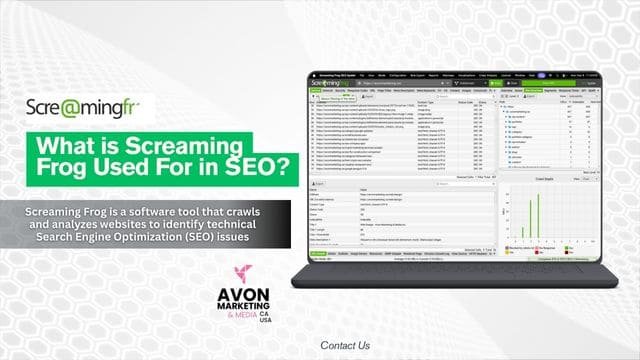
Ever wonder how to get deep insights into your website’s health without hiring a full-blown SEO agency? Or how top marketers analyze every page, meta tag, and link like clockwork? Here’s your answer: Screaming Frog SEO Spider. This tool might not have the fanciest interface, but when it comes to digging into your site’s SEO structure, it’s a powerhouse.
In 2026, SEO is more technical than ever, and tools like Screaming Frog are the difference between websites that rank and those that sink. Whether you’re an SEO rookie or a seasoned digital marketer, this guide will show you exactly how to use Screaming Frog to uncover hidden issues, optimize your pages, and boost your rankings.
At Avon Marketing & Media, we are here to share our knowledge with everyone, so you can further use SEO to your advantage with our help and on yourself!
What Makes Screaming Frog Stand Out?
If you’ve tried tools like SEMrush, Ahrefs, or Moz, you might wonder: why Screaming Frog?
Screaming Frog is a desktop-based crawler that mimics how search engine bots crawl your site. It offers real-time, detailed crawling, allowing you to find and fix SEO issues that other tools might overlook. Unlike cloud-based tools that limit how deep you can go unless you pay more, Screaming Frog gives you unfiltered, raw data—perfect for in-depth technical audits.
Here’s what makes it special:
- Lightning-fast crawling of websites (even 500k+ URLs with the right setup)
- Real-time analysis — get feedback as it crawls
- Full control over settings — customize user agents, follow directives, include/exclude parameters
- Integration with GA & GSC, pulling user metrics into your crawl reports
- Custom extractions, including schema, metadata, and even hidden page elements
It’s like having X-ray vision into your website’s SEO, helping you see what’s broken, what’s missing, and what needs work—instantly.
How to Download and Install Screaming Frog
Getting started is pretty straightforward, and the best part? There’s a free version to test-drive the core features.
Free vs Paid: What’s the Difference?
- Free version: Crawl up to 500 URLs per site, no custom extraction or GA/GSC integration
- Paid version (£199/year): Unlimited URLs, advanced features like JavaScript rendering, custom extraction, scheduling, and more
Installation Steps
- Head to the official Screaming Frog website
- Choose your operating system (Windows, macOS, or Ubuntu)
- Download the installer
- Run the setup file and follow the on-screen instructions
- Once installed, launch the app and you’re ready to crawl!
Make sure your system has at least 4GB RAM (8GB+ recommended for large sites) and a decent CPU—because crawling a big site is a heavy lift.
The Screaming Frog Interface Explained
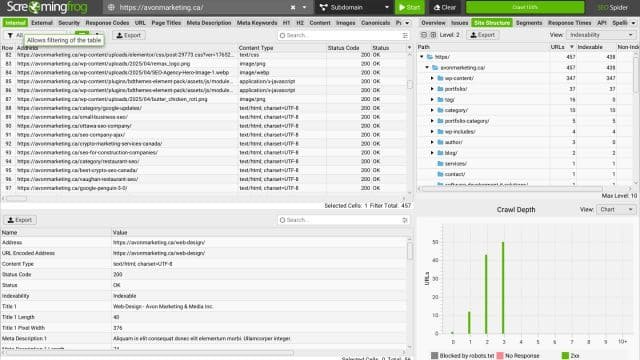
When you first open Screaming Frog, it might feel overwhelming. All those tabs, filters, and settings? Don’t panic—we’re breaking it down.
Main Dashboard Sections
- Search Bar: Enter the URL of your site to begin a crawl
- Top Menu: Where you configure settings, integrations, and exports
- Main Panel: Where results show up in real-time—this is where the magic happens
- Right Sidebar: Displays crawl progress, issues, and types of URLs
- Lower Panel: Offers deeper insights into the selected URL (headers, inlinks, outlinks, etc.)
It’s all neatly organized, and once you understand what you’re looking at, it becomes incredibly intuitive.
Tips:
- Before you start crawling, tweak your settings based on your site’s size and needs
- Use “Configuration > Spider” to set what the crawler should and shouldn’t scan
- Don’t forget to save your crawls for future reference
Basic Website Crawl: Getting Started
This is where the fun begins. Running your first crawl gives you an eagle-eye view of your site.
Steps to Start a Crawl
- Open Screaming Frog
- Enter your domain (like
https://avonmarketing.ca/) into the top search bar - Hit “Start” and let it crawl
As the crawl runs, you’ll see live updates: how many internal pages found, how many external links, redirects, images, and more. It’s incredibly satisfying to watch it unfold in real-time.
Free version limitation? It stops at 500 URLs. But for small sites, that’s plenty.
Once it finishes, the software displays everything from titles and meta descriptions to response codes, headers, and duplicate content.
Understanding the Crawl Report
When the crawl finishes, your dashboard will be full of raw data. But what does it all mean?
Here’s a breakdown of the most useful tabs:
- Internal: All internal URLs found
- External: All external links
- Response Codes: 404s, 301s, server errors—crucial for technical SEO
- Page Titles & Meta Descriptions: See what’s missing, duplicated, or too long
- Headers (H1, H2): Easily spot pages missing header tags or with duplicates
- Images: Identify missing alt text or oversized images
- Canonical: See if canonical tags are properly applied
Clicking on any row gives you even deeper insight in the bottom panel—like all the pages that link to it (inlinks) or it links to (outlinks).
How to Use Screaming Frog for On-Page SEO
Let’s get into one of the most powerful uses of Screaming Frog: on-page SEO optimization. Think of this as your ultimate checklist for what’s happening inside your site’s content from a technical perspective.
Here’s how Screaming Frog helps you polish your pages for better rankings:
Title Tags
Navigate to the “Page Titles” tab. Here, Screaming Frog shows you:
- Missing titles – Huge red flag for SEO. Google needs these to understand your content.
- Duplicate titles – Causes confusion for search engines; could lead to cannibalization.
- Titles that are too long or too short – Google truncates titles longer than ~60 characters, and too-short titles don’t give enough context.
Fixing title tag issues alone can improve CTR and rankings.
Meta Descriptions
Under the “Meta Description” tab, you’ll see:
- Descriptions that are missing, too long, or duplicated.
- Screaming Frog also flags descriptions that are non-unique across pages.
Craft compelling, relevant meta descriptions that encourage clicks—especially for your top-performing pages.
Header Tags (H1s & H2s)
Use the “H1” and “H2” tabs to check for:
- Missing or multiple H1s
- Duplicate headings
- Keyword-stuffed headers (you’ll need to assess this manually)
Every page should have a unique H1 that matches the page’s intent. Think of it as the “headline” of the page.
Image Optimization
Under the “Images” tab, Screaming Frog highlights:
- Images missing alt attributes
- Oversized images (over 100kb by default)
Alt text is critical for both accessibility and image SEO. Plus, large images slow your page down—bad for user experience and rankings.
Structured Data & Custom Elements
With custom extraction, you can also analyze:
- Missing schema markup
- Improperly implemented structured data
- Content inside meta tags, Open Graph, or Twitter cards
This is incredibly useful if you rely on rich snippets or want to enhance your site’s appearance in SERPs.
In short, Screaming Frog gives you a full microscope into your on-page SEO elements. Instead of checking each page manually, it lays everything out in neat, filterable columns—letting you fix issues fast and at scale.
Technical SEO Audit with Screaming Frog
Now let’s level up. If on-page SEO is the foundation, technical SEO is the framework. Screaming Frog is basically your audit assistant, showing you every crack, gap, or broken link in your site’s structure.
Here’s what to check in your technical SEO audit:
Broken Links & Redirect Chains
Under the “Response Codes” tab, filter for:
- Client Error (4xx): These are broken pages (404s)
- Server Error (5xx): Issues on your server (usually 503 or 500)
- Redirection (3xx): Shows redirects, including chains and loops
Fixing broken links improves crawl efficiency and user experience. Screaming Frog even shows where the broken link lives, making it easy to fix in your CMS.
Duplicate Content
Duplicate content can kill your SEO. Use Screaming Frog to identify:
- Duplicate titles
- Duplicate meta descriptions
- Identical content (via hash values)
- Canonical conflicts
Having multiple pages compete for the same keyword is like running against yourself in a race. Use the “Duplicate” filter to catch and consolidate them.
Canonical Tags
Under the “Canonical” tab, you can see:
- Whether each page has a canonical URL
- If any canonicalized URLs are incorrect
- Pages pointing to themselves (which is fine) vs. pointing to others (which needs checking)
Canonical issues can seriously mess up your indexing. Fixing them ensures Google understands the “main” version of each page.
Indexability
Use the “Indexability” column to check which pages:
- Are blocked by robots.txt
- Have a noindex tag
- Are non-indexable for other reasons
You may be shocked to discover that important pages are accidentally set to noindex.
Screaming Frog’s technical audit capabilities go deep. It doesn’t just tell you what’s broken—it shows you exactly where and why, so you can fix it quickly.
Analyzing Site Architecture
Think of your website like a library. If books are disorganized or hidden behind 10 doors, no one’s going to find them. That’s exactly what poor site architecture does to your content.
Screaming Frog helps you:
Map Your Internal Linking
Use the “Inlinks” and “Outlinks” tabs to find:
- Pages with zero internal links (orphan pages)
- Overloaded pages linking to hundreds of other pages
- Link depth (how many clicks from homepage)
Why it matters? Google uses internal links to understand structure and pass link equity.
Understand URL Structure
Go to the “Internal” tab and sort by URL. Are your URLs clean, keyword-rich, and consistent?
Bad: https://site.com/page?id=9821&cat=7
Good: https://site.com/seo-checklist/
Screaming Frog helps spot messy URLs at scale.
Visualize Crawl Depth
Go to “Site Structure” and generate a crawl tree graph. This shows:
- How deep your important pages are buried
- Whether your content is too siloed
- Pages with high internal authority (based on crawlability)
A clean, shallow site architecture (3 clicks or less from homepage) = better crawlability and rankings.
Checking Page Speed & Core Web Vitals
Site speed is now a core ranking factor. And yes, Screaming Frog helps here too—especially when integrated with Google’s PageSpeed Insights.
How to Use It:
- Go to Configuration > API Access > PageSpeed Insights
- Connect your Google API key
- Run a crawl
- Screaming Frog pulls in metrics like:
- Largest Contentful Paint (LCP)
- First Input Delay (FID)
- Cumulative Layout Shift (CLS)
- Speed Index
- Time to Interactive
How to Analyze It:
- Sort pages by poor Core Web Vitals
- Identify which pages need optimization (large JS files, images, render-blocking scripts)
- Combine this with your internal linking data—are slow pages also your most linked?
Use this to prioritize performance fixes on high-traffic or conversion pages first.
Using Custom Filters and Extraction
Now we’re entering power user territory.
Custom extraction lets you pull ANY piece of data from your site using XPath, CSSPath, or Regex. It’s perfect for checking:
- Schema markup
- Structured data (JSON-LD, microdata)
- Price, ratings, author names
- Meta tags not visible in default tabs (like Open Graph)
Example Use Case:
You want to audit all product pages to ensure they have schema.org Product markup.
- Go to Configuration > Custom > Extraction
- Add a new filter using XPath like
//script[@type="application/ld+json"] - Crawl your site
- Screaming Frog will extract that content from every page for you to review
This is one of the features that make Screaming Frog ideal for eCommerce, news sites, and large-scale audits.
Conclusion
Screaming Frog isn’t just another SEO tool—it’s the Swiss Army knife for serious marketers, technical SEOs, and website owners who want full control over their website’s performance. Whether you’re running a local business site like ours or managing a massive eCommerce store, Screaming Frog gives you the kind of actionable insights that lead directly to higher rankings.
From auditing title tags and fixing broken links to optimizing site architecture and visualizing crawl depth, Screaming Frog helps you see your website the way Google does. When used consistently, it becomes your go-to tool for:
- Uncovering technical issues before they hurt your rankings
- Improving user experience through better page speed and structure
- Identifying low-hanging SEO fruit that can produce fast results
In 2025 and beyond, SEO is only getting more competitive. Tools like Screaming Frog help you stay one step ahead by making sure your site is technically sound, fast, and ready to be crawled and indexed by search engines.
If you’re serious about SEO, learn how to use Screaming Frog like a pro. Make it a part of your weekly or monthly audit workflow, and you’ll start seeing better crawlability, indexability, and ultimately, better search engine rankings.
FAQs
- What is the cost of Screaming Frog?
Screaming Frog offers both a free and a paid version. The free version allows up to 500 URLs per crawl, while the paid version costs £199/year and includes features like JavaScript rendering, custom extraction, scheduled crawls, and integrations with Google Analytics and Search Console.
- Can I use Screaming Frog on WordPress sites?
Absolutely. Screaming Frog is platform-agnostic, meaning it works with any website, whether it’s built on WordPress, Shopify, Squarespace, or anything else. Just enter your site’s URL, and Screaming Frog will crawl it like any other.
- Is Screaming Frog suitable for large websites?
Yes, Screaming Frog is perfect for large-scale sites—especially if you’re using the paid version. With the right system specs and configuration (e.g., increasing memory allocation), it can crawl hundreds of thousands of pages without breaking a sweat.
- How often should I crawl my website with Screaming Frog?
Most experts recommend monthly crawls to catch new issues before they snowball. However, during major updates or site migrations, you may want to crawl weekly or even daily.
- Does Screaming Frog find backlinks?
No, Screaming Frog doesn’t show external backlinks. It focuses on on-site SEO, crawling your own site to find internal links, structure, errors, and optimization issues. For backlink analysis, use tools like Ahrefs, SEMrush, or Majestic.